
How to Use Apptim for Mobile Performance Testing
Reading Time: 5 minutes
By QA Madness Team, in partnership with Apptim | July 24, 2020 | Updated: May 29, 2026
Mobile app crashes still cause 87% of uninstalls — and in 2026, user tolerance for performance issues is lower than ever. Slow render times, memory spikes, and battery drain push users to uninstall before they ever file a report.
Apptim is a free desktop tool that lets QA engineers and developers measure render times, CPU usage, memory consumption, battery drain, and crash details on real Android and iOS devices — without writing a single line of code or installing an SDK. It fits naturally into exploratory testing sessions and sprint-based workflows, giving teams a shareable performance report at the end of every session.
This guide shows you how to set it up and run your first test in under five minutes.
Apptim’s Features
- Native and hybrid app testing: Apptim evaluates the performance of native mobile apps or hybrid apps (but it only captures data from the native part).
- Performance and bug reports: After each test session, the tool generates a report regarding the performance metrics and another report for each bug that you may find during your test session with Apptim.
- JIRA Integration: Through an API key, it integrates with Jira, so you can publish and track bugs directly in this project management tool.
- Test on real devices: In order for this tool to do its own thing, you must connect your mobile device with a USB cable to the PC where Apptim is installed.
- Easy to use: Apptim’s user interface is elegant and intuitive, making it a simple tool to use. In addition, on its website you can find detailed documentation that will help you through your first steps with the tool and there is the option to ask for support every step of the way.
What’s unique about Apptim is that you don’t need an SDK in order to start capturing performance information. This makes it easy for manual testers, developers, and even product owners to run a test.
Once you’ve installed Apptim, you can run your first test and obtain performance results in as little as five minutes.
Setting Up Apptim
There’s a simple two-step process to configure Apptim.
First, you can create an account on the Apptim website and then download the Windows or iOS desktop application. Apptim requires installing some dependencies, which it will list for you, and after clicking “Install Dependencies,” will begin to install for you if they are not already installed on your computer.
To run a test, simply connect a device to your computer through a USB cable and open Apptim. You will be prompted to choose to either start a new test or compare test sessions.
Once you click “Start a new test,” it will ask you to confirm your mobile device and then you can select the app on the device that you want to test or search for it by name.
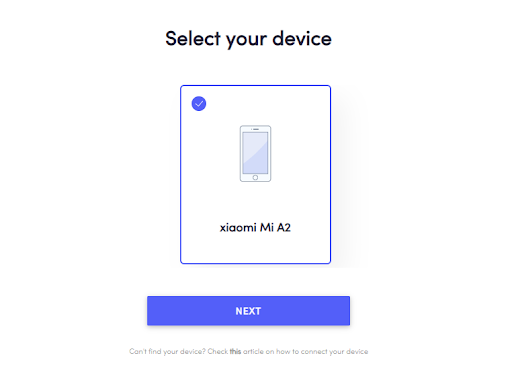
Then, it will ask what type of test you’d like to run. Currently, only exploratory tests are supported, but in the future, there will be the option to run a bot test.
Next, it will ask you to add a name to your test and press “Start” to begin your exploratory testing session.
During the test
At any moment during your testing session, you can choose to report a bug or take a note. You can end your testing session anytime by clicking on “End Session.”
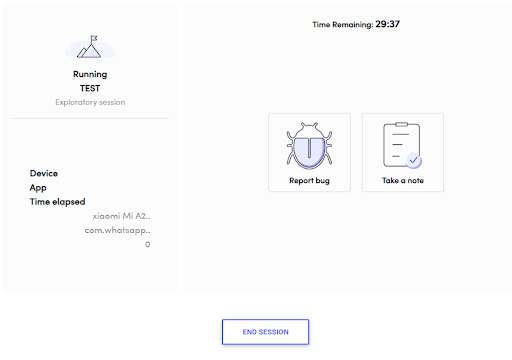
Report a bug
When you click on “Report bug,” you will be prompted with a new screen where you can give the bug a title and description, add a tag, and attach a video and screenshot that were automatically captured. You also have the option to edit the screenshot.
Take a note
When you click on Take a note, you will be prompted with a new screen where you can write a Note, a Risk identified, an Idea, or just a To do as a reminder for later. You can also attach a screenshot.
Review session
Once you end your testing session, you will see a summary with bugs, ideas, risks, and notes taken.
Apptim reports
Once you’ve finished your test session, Apptim generates a report with a summary of all of the performance data that it has automatically captured for you while you were testing the app’s functionality. It also generates a separate report for each bug recorded.
In each Apptim report, you’ll find:
- A screen recording of the device during the execution of the exploratory session
- Alerts and warnings related to the user experience
- Alerts and warnings related to the usage of device resources, with reference thresholds, shown in yellow or red depending on their severity
- Test environment data (device, app, version info, etc)
- Crashes/exceptions details with associated screenshots, and the exact minute of the session in which it happened in order to locate the specific moment in the video
- Detail of resource usage with associated graphs
- Logs and downloadable artifacts collected during the test
Here are some screenshots of what an Apptim Report includes:
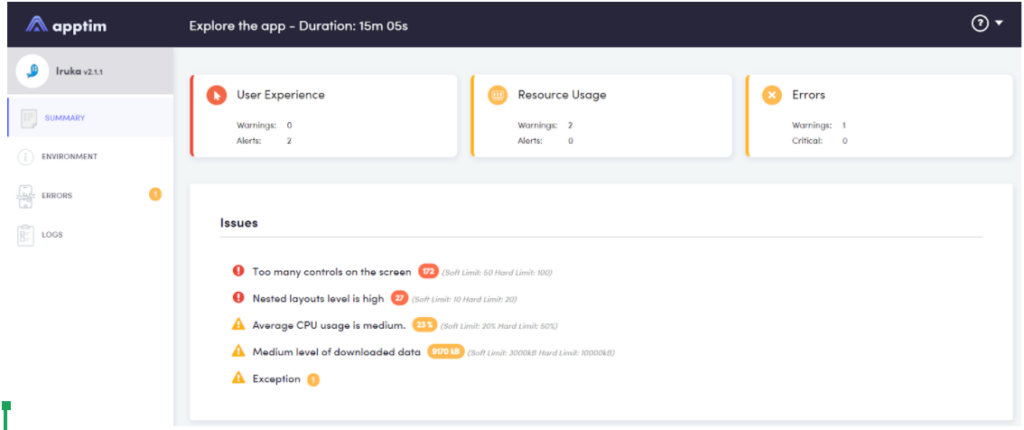
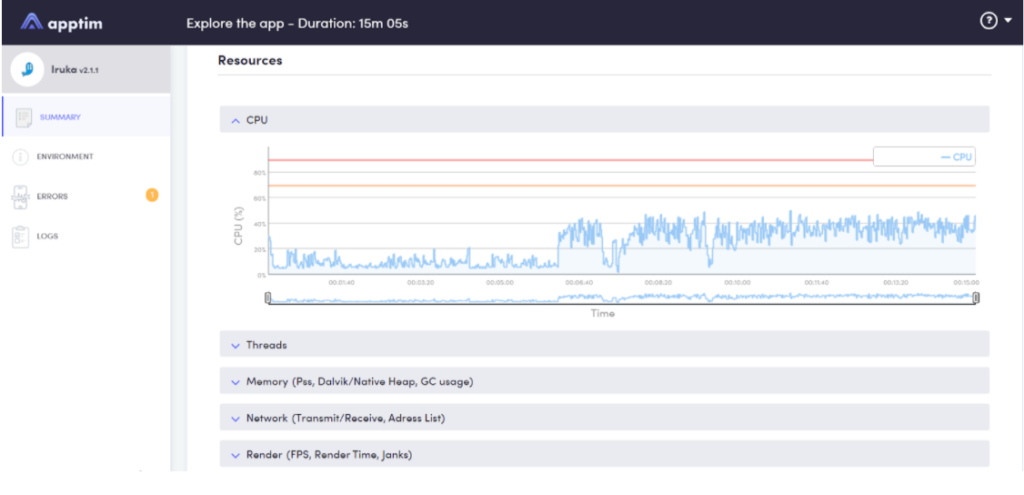
Here you can also see an example of an Apptim report.
Apptim for Mobile Performance Testing
These days, mobile performance is more crucial than ever, but it’s also a challenge to gain visibility into all of the factors that impact it. Apptim provides easy-to-read reports for developers to check mobile app performance, review logs, and crash details. Teams can now release new versions of their app with confidence by getting full visibility on app performance trends.
Frequently Asked Questions
Does Apptim work without an SDK?
Yes. Apptim captures performance data directly from the device without requiring any SDK integration. This makes it accessible to manual testers, developers, and product owners without any code changes to the app.
Does Apptim support both Android and iOS?
Yes. The macOS version of Apptim supports both Android and iOS devices. The Windows version supports Android only. In both cases, the device must be connected via USB cable.
Is Apptim free to use?
Apptim offers a free plan that covers core performance testing features including reports, bug logging, and Jira integration. Advanced features may require a paid plan.
Can Apptim test hybrid apps?
Apptim can test hybrid apps but only captures performance data from the native layer. Performance data from the web view layer inside a hybrid app is not measured.
How long does it take to run the first test?
Once Apptim is installed and dependencies are set up, you can run your first test and get a performance report in under five minutes.